> ## Documentation Index
> Fetch the complete documentation index at: https://firebolt-aggregate-helm-docs-pr-72.mintlify.site/llms.txt
> Use this file to discover all available pages before exploring further.
> Learn about how to enable and disable multi-factor authentication in Firebolt.
# Multi-factor authentication
Enable multi-factor authentication (MFA) as an additional layer of security to protect data that is accessible through Firebolt. With MFA enabled, users must authenticate with a one-time code generated by their mobile device upon login. MFA can be enabled per login.
Enabling MFA for a login requires the org\_admin role.
## Enable MFA for a login
### SQL
To enable MFA for a login using SQL, use the [ALTER LOGIN](/managed-service/organization/commands/alter-login) statement. For example:
```sql theme={"theme":{"light":"css-variables","dark":"css-variables"}}
ALTER LOGIN "alex@acme.com" SET IS_MFA_ENABLED = TRUE;
```
Multi-factor authentication can also be set for new logins, with the [CREATE LOGIN](/managed-service/organization/commands/create-login) command. For example:
```sql theme={"theme":{"light":"css-variables","dark":"css-variables"}}
CREATE LOGIN "betsy@acme.com" SET IS_MFA_ENABLED = TRUE;
```
### UI
To enable MFA for a login in the UI:
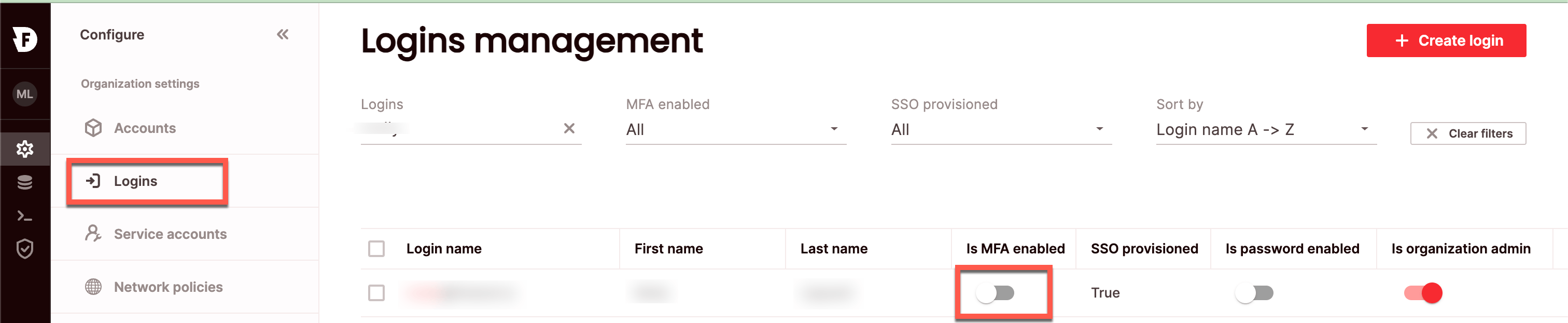 1. Click **Configure** to open the configure space, then choose **Logins** from the menu.
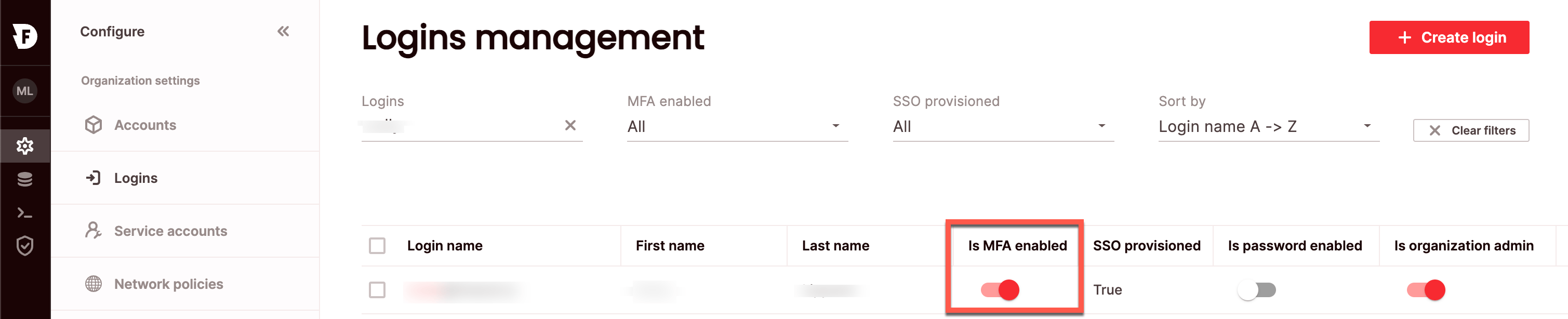
2. Search for the relevant login using the top search filters or by scrolling through the logins list. Toggle on **Is MFA enabled**.
1. Click **Configure** to open the configure space, then choose **Logins** from the menu.
2. Search for the relevant login using the top search filters or by scrolling through the logins list. Toggle on **Is MFA enabled**.
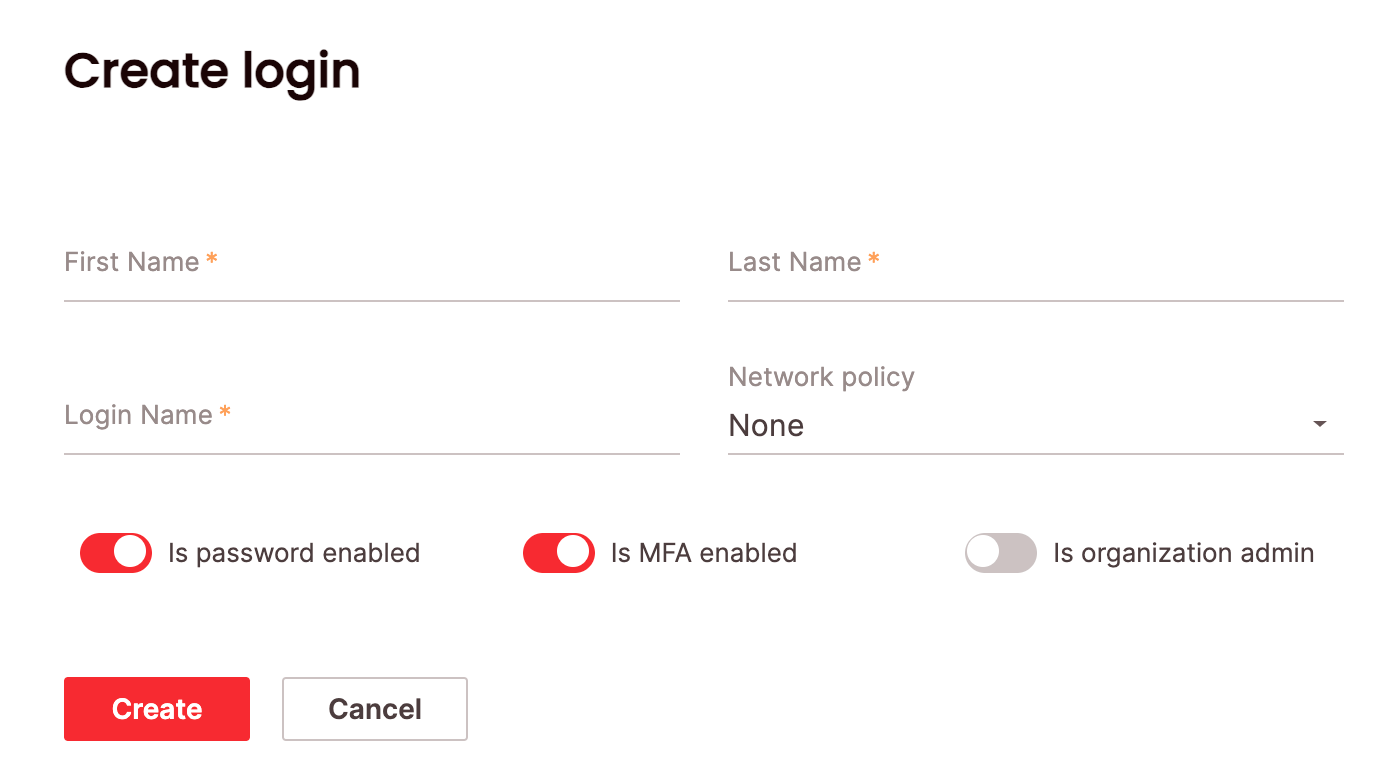
 MFA can also be enabled when creating a login, by toggling **Is MFA enabled** in the **Create login** window: